Set up the app using setup wizards
There are two setup wizards (Mobile App Setup and App Settings Migration) that appear upon first logging into the Alarm.com Alarm.com app to assist you with getting the most out of your Alarm.com system right from the start.
Compatibility
The Mobile App Setup and App Settings Migration setup wizards are compatible with:
- Android devices.
- iOS devices.
- Alarm.com Places is not supported on iPads.
Mobile App Setup wizard
The Mobile App Setup wizard guides Mobile Apps through the set up for the best practices in the Alarm.com Alarm.com app.
Note: The Mobile App Setup wizard only launches the very first time the user logs into the Alarm.com Alarm.com app. So, if you close the Alarm.com app after the wizard has launched, you are not able to return to the Mobile App Setup wizard.
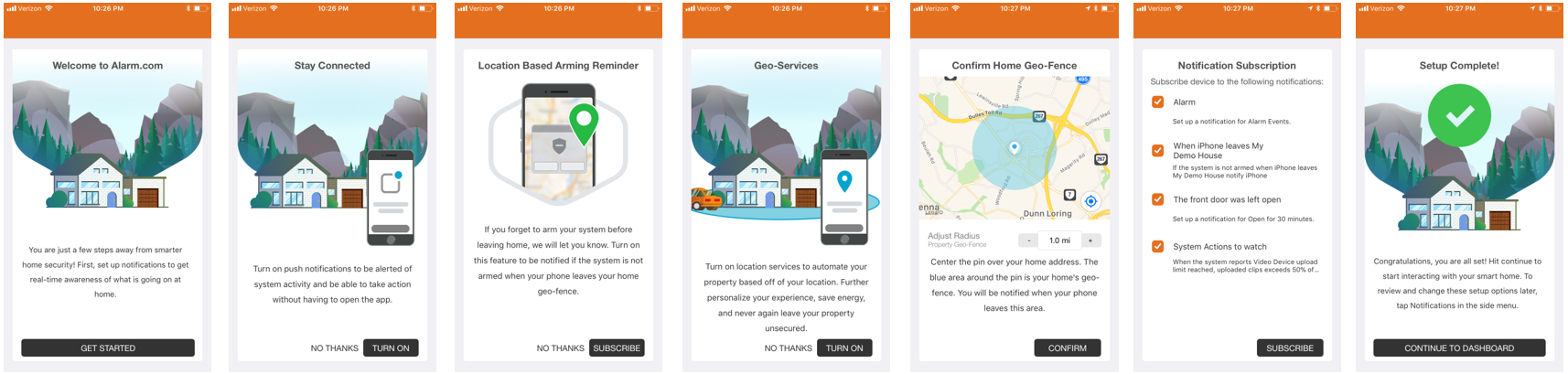
Primary customer logins have immediate access to engaging app features. Using the Mobile App Setup wizard, primary customer logins are prompted to:
- Turn on push notifications.
- This allows the user to receive notifications through the Alarm.com Alarm.com app.
- Create a location-based arming reminder.
- This allows the user to receive a reminder to arm the system if the mobile device leaves the Geo-Fence.
- Turn on Alarm.com Places.
- This allows the user to automate their system based on the location of the mobile device.
- Create their first Geo-Fence.
- This allows the user to adjust the Geo-Fence's location and radius.
- Subscribe the mobile device to notifications.
- This allows the user to select which notifications they wish to receive.
The following is an example of the process the user goes through during the Mobile App Setup wizard:
Secondary customer logins are also connected to some of the features when they first login. Using the Mobile App Setup wizard, secondary customer logins are prompted to:
- Turn on push notifications.
- Turn on Alarm.com Places.
- Subscribe the mobile device to notifications.
Note: If it is the very first time the user is logging into either the Alarm.com customer website or Alarm.com app, the user also sees the Terms & Condition agreements to review and agree to.
App Settings Migration wizard
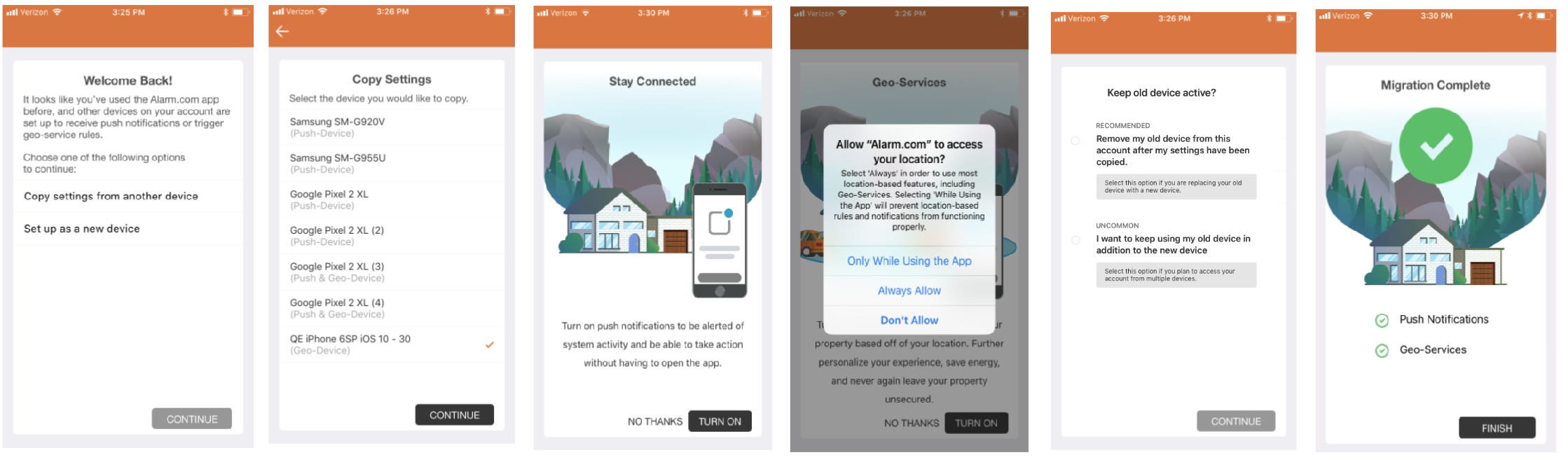
The Apps Settings Migration wizard allows users to transfer their app settings from an old mobile device to a new mobile device. In just a few steps, users with a new mobile device can seamlessly transfer their settings for push notifications, Alarm.com Places, and other specific notification types.
Using the App Settings Migration wizard, the user is prompted to select either:
- Copy settings from another device - If the user selects to Copy settings from another device, the App Settings Migration wizard prompts the user to:
- Select the old mobile device to copy settings (i.e., push notifications or Alarm.com Places) and notifications from to transfer the new mobile device.
- Depending on which settings the old mobile device has, the wizard prompts the user to turn on push notifications and/or Alarm.com Places.
- Choose to replace the old device (remove it from the account after the migration to the new device is complete), or add the new device to the notifications as an additional device on the account and the old device is kept active.
- Set up as a new device - If the user selects to Set up as a new device, the App Settings Migration wizard prompts the user to set up the new device for push notifications, Alarm.com Places, and subscribe to notifications.
The following is an example of the process the user goes through when Copy settings from another device is selected during the App Settings Migration wizard: