How do I control multiple partitions of a security panel?
A secondary partition will appear on an account after the partition is enabled in the security panel and has at least one sensor associated with it. There are no additional service package costs to remotely control or use partitions on a customer account.
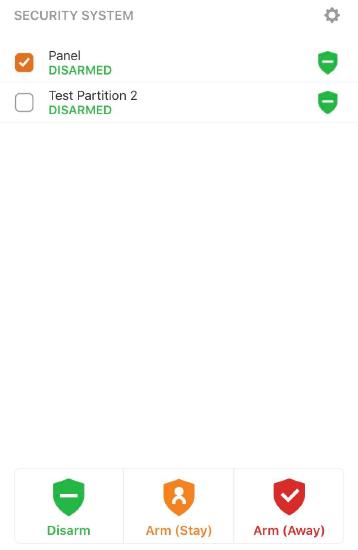
- On the Alarm.com app, the arming level of a partition can be set to whatever is desired by checking the box next to the partition's current status and you can select multiple partitions at the same time. For example, eight partitions can be Armed Away at once.
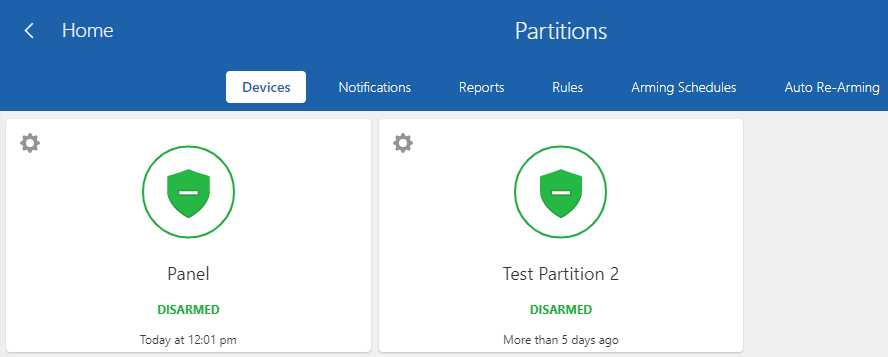
- On the Alarm.com customer website, the second partition will appear below the first partition under Current Arming States.
Note: Selecting multiple partitions can only be done using the Alarm.com app and only if those partitions are all disarmed or if they are all armed (either stay or away). You can also send different commands to different partitions as well (e.g., arm partitions 1 and 2 while leaving partitions 3 and 4 disarmed).
Control multiple partitions using the Alarm.com app:
To view and control secondary partitions individually from the app home screen, you can scroll through them on the Security System card by swiping left or right on the partition status and then tapping the partition to send commands to the individual partition.
Multiple partitions can be commanded at once by using the Security System menu. Tap the Security System card on the home screen and use the checkboxes to select multiple partitions to send commands to.
Control multiple partitions using the Alarm.com customer website:
Partitions can be controlled through the Security System page on the Alarm.com customer website. On this page, you can select any desired partition and send commands to individual partitions.