To control the fan using the Alarm.com app:
- Log into the Alarm.com app.
- Tap Thermostats.
- Tap Fan.
- Tap to select the desired fan option, then tap Select.
The thermostat fan can be controlled by using the Alarm.com app or Alarm.com customer website and setting the fan to Auto, 1 hour, 2 hours, 3 hours, 24 hours, Indefinite, or Circulate. The fan options depend on the thermostat model and configurations. For more information about the fan modes, see How does each fan option operate the fan?.
The fan can also be controlled using schedules. For more information about using fan schedules, see Create/edit a Thermostat Fan schedule.
Note: Any direct control on the Alarm.com app or Alarm.com customer website or app will override the current fan schedule until the next schedule begins.
 and then click select the desired fan option.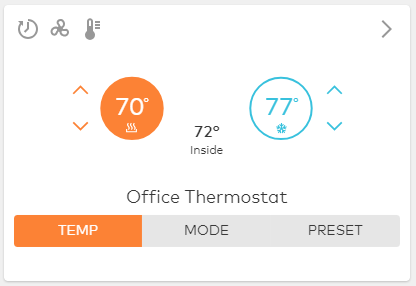
This is to safeguard against shutting off the fan while the heat or cooling is running. Without circulation, the system would be damaged.
No. Low and high fan settings are not controllable from Alarm.com.
Auto mode automatically operates the fan as needed by the HVAC system.
When a specified number of hours is selected (i.e., 1, 2, 3, 24 hours), the fan stays on for the allotted time frame and then reverts to Auto mode.
This fan option allows the fan to stay on indefinitely. For Indefinite or On to appear as a fan option, Enable fan ON mode must be enabled in the thermostat settings (if available). If you are not seeing this option, contact your service provider.
The Circulate fan option is controlled by the thermostat's Fan Circulation/Duty Cycle settings. The Fan Duty Cycle determines how long the fan is on during the Fan Circulation Period.
Example: If the circulation time is 10 minutes and the duty cycle is 25%, the fan is on for 2.5 minutes and then off for 7.5 minutes until the next cycle. This option increases the air quality without constantly running the fan.
For the Alarm.com Smart Thermostat:
For more information about your thermostat's fan settings, contact your service provider.