Some systems allow for scheduled or temporary user access that will give specified users access to the system at certain times.
If you do not see the following options, your system may not be compatible with scheduled or temporary user codes. For further questions, contact your service provider.
Scheduled panel user code access
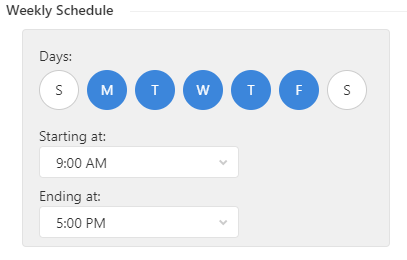
Scheduled user codes allow a user to have access to the system during a specified timeframe every week.
Example: A scheduled user code can be given access to the system for every Monday and Wednesday between 8:00 AM to 4:00 PM.
Restrict a user code to a specific time period
To restrict a user code to a specific time period using the Customer app:
- Log into the Customer app.
- Tap
 .
. - Tap Users.
- Tap to select the user to restrict.
- Verify the user has Panel Access enabled, and a valid Access Code.
- In Access Information, tap Access Period.
- Tap Restricted schedule.
- In Weekly Schedule, configure the days and time to restrict the user's access to the system.
- Tap Save.
To restrict a user code to a specific time period using the Customer website:
- Log into the Customer website.
- Click Users.
- Click
 for the user that will be restricted.
 - Click
 .
. - Verify the user has panel access enabled with a valid access code.
- In Access Information, click Access Period.
- Click Restricted Schedule.
- In Weekly Schedule, configure the days and time to restrict the user's access to the system.
- Click Save.
Temporary panel user code access
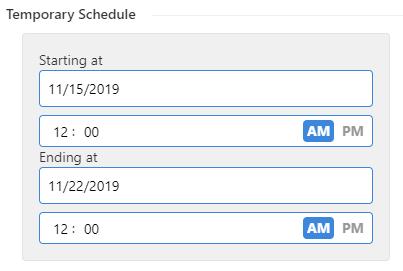
Temporary user codes have access to the system during only a specified start and end time.
Example: A temporary user code can be given access to the system for January 7, 2019, from 8:00 AM until January 10, 2019, at 4:00 PM. The code can arm and disarm the system at any time between the specified time period.
Add a temporary user code
To add a temporary user code using the Customer app:
- Log into the Customer app.
- Tap .
- Tap Users.
- Tap to select the user to restrict.
- Verify the user has Panel Access enabled, and a valid Access Code.
- In Access Information, tap Access Period.
- Tap Temporary Access.
- Select the start and end date/time that the user will have access to the system.
- Tap Save.
To add a temporary user code using the Customer website:
- Log into the Customer website.
- Click Users.
- Click for the user that will be restricted.
- Click .
- Verify the user has panel access enabled with a valid access code.
- In Access Information, click Access Period.
- Click Temporary Access.
- Select the start and end date/time that the user will have access to the system.
- Click Save.