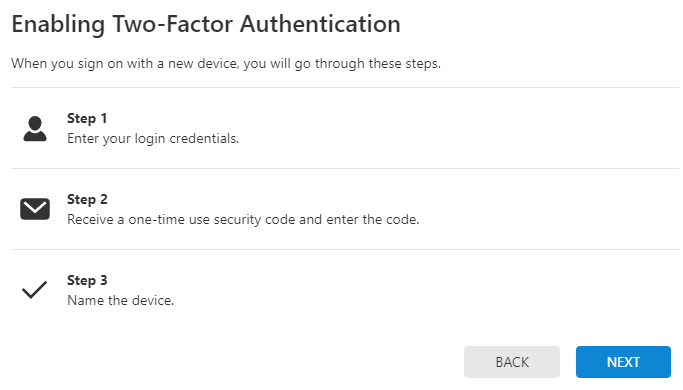
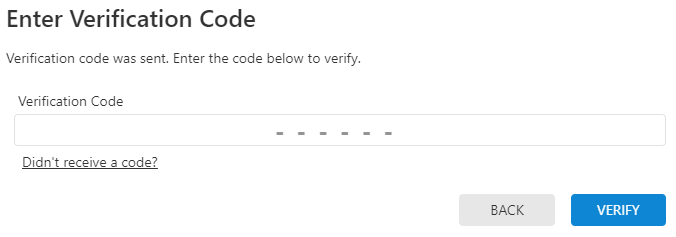
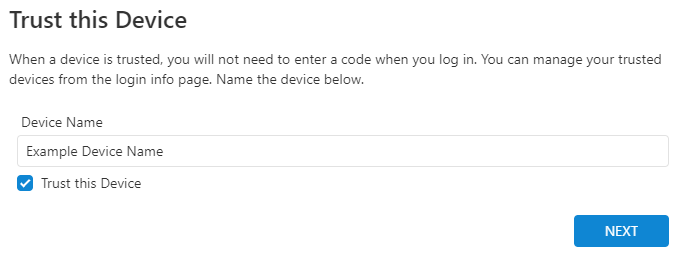
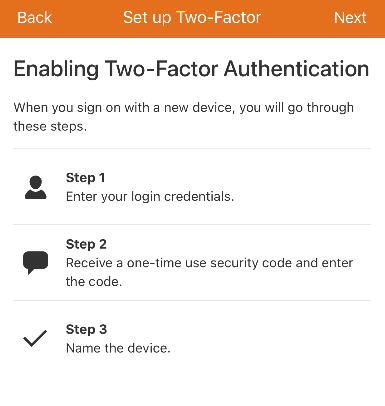
To enable or disable Two Factor Authentication for a login using the Customer app: 
Note: If you have changed your phone number or email address, see If you change your cell carrier, phone number, or email address.
- Log into the Customer app.
- Tap
 .
. - Tap Login Information.
- Tap Two Factor Authentication.
- To disable Two Factor Authentication, tap Disable and then tap Confirm.
Note: Two Factor Authentication may be required or suggested by your service provider. For additional assistance, contact your service provider. - To enable Two Factor Authentication, select Text Message, Email, or Authentication app.
Note: It is recommended to set up Two Factor Authentication using multiple methods. If multiple methods cannot be enabled, contact your service provider- To enable Two Factor Authentication for text message:
- Tap Text Message.
- Tap Next.
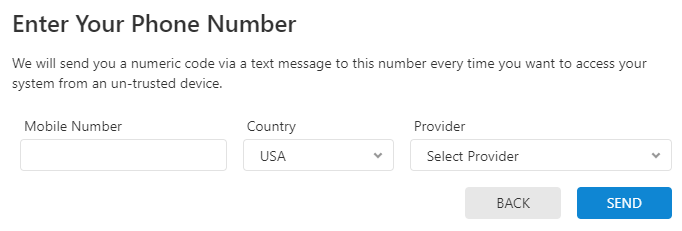
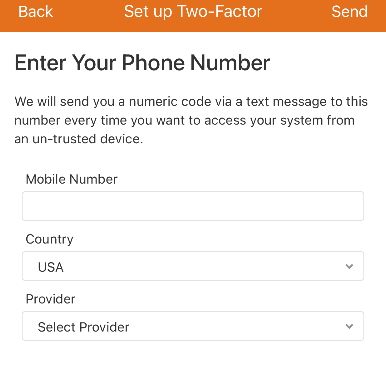
- In Mobile Number, enter the mobile number to receive the Two Factor Authentication confirmation code.
- Using the Country dropdown menu, select either USA or Canada.
- Using the Provider dropdown menu, select the cellular carrier of the mobile phone number that will receive the Two Factor Authentication confirmation code.
Note: The Provider dropdown menu displays the full list of Two Factor Authentication compatible cellular carriers.- If the carrier is not listed, select Other.
Note: This displays the full list of Two Factor Authentication compatible cellular carriers.
- If the carrier is not listed, select Other.
- Tap Send to send the verification code to the mobile number entered.
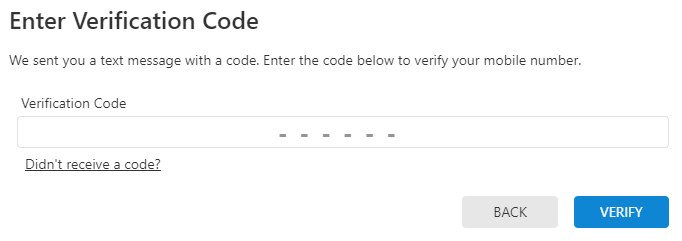
- In Verification Code, enter the code that is provided in a text message to the mobile number entered.
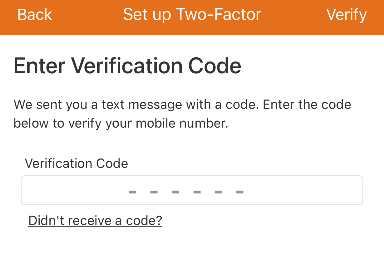
- Tap Verify.
- To enable Two Factor Authentication for email:
- Tap Email.
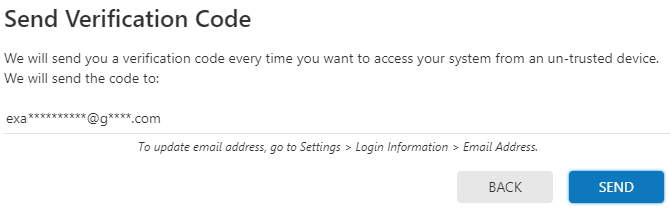
- In Send Verification Code, verify the correct email is displayed. For more information about how to update the email address, see Change an email address.
- Tap Send.
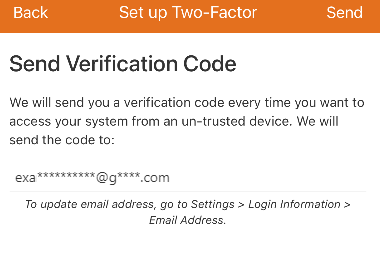
- In Verification Code, enter the code that is provided in the received email.
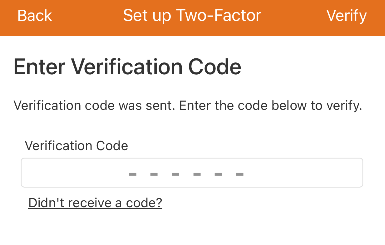
- Tap Verify.
- To enable Two Factor Authentication using an authentication app:
Important: An authenticator app is required to complete this process and the steps may vary based on the authenticator app in use.- Tap Authentication App.
- Generate an authentication code:
Note: The Duo authenticator app may experience unexpected behavior and it is recommended to use an alternative authenticator app.- Use an authenticator app to scan the QR code or manually enter the code provided on the Customer app or Customer website into the authenticator app.
- In the Enter Code field, enter the code that is generated on the authenticator app to verify the device.
- Click Next.
- To enable Two Factor Authentication for text message:
- In Device Name, enter the desired name for the device that will be trusted.
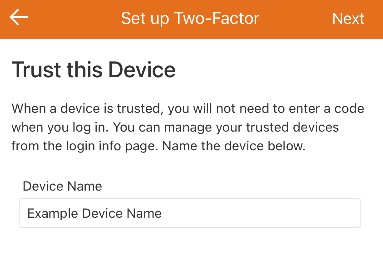
- Tap Next.
- In Linked Devices, tap Trust next to any additional devices that can be trusted.
- Tap Done.