Note: This option is only available if a multi-colored light is installed on your account.
- Log into the Alarm.com customer website.
- Click Automation.
- Click Schedules.
- Click Add New Schedule.
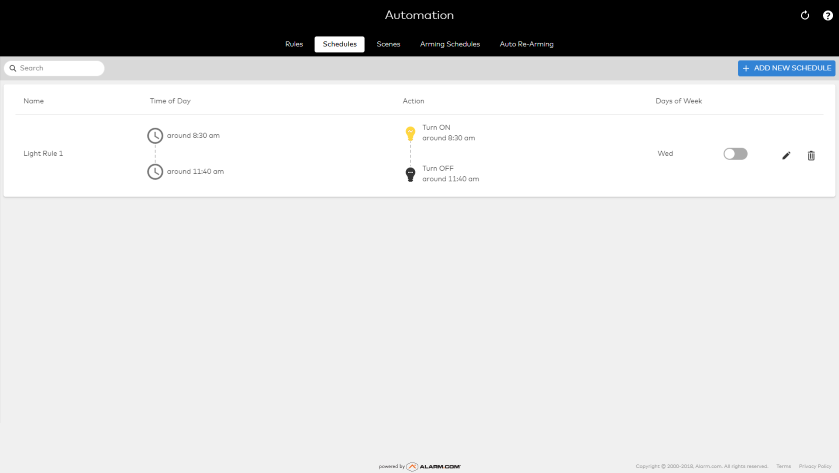
- Click Light Schedule (if applicable).
- Enter a name for the schedule.
- In Automate my, click to select Multi-Colored Lights.
- In Select Devices, click to select each of the desired lights to use for this schedule.
- In On these days, click to select the desired days for the schedule to run.
- In Perform these scheduled actions, use the First dropdown menu to select Set Color, and click
![]() to select the desired color.
to select the desired color. - In Based on, click to select the desired time of day for the action to take place.
Note: Sunrise and Sunset are determined by the system address in Alarm.com.
- Using the Then dropdown menu, click to select the desired action:
- Leave ON - This will keep the light on at that same color until it is manually turned off.
- Turn OFF - This will have the light turn off at the selected time.
- Click Save.
