Add the Alarm.com widget for Android
Android widgets are shortcuts to actions on apps that can be triggered at the touch of a button.
Android widget requirements
Usage of Android widgets require certain device and account requirements:
- Scene compatibility - The customer must have an Alarm.com connected system compatible with scenes. For more information, see Scenes.
- Android 4.0 or higher - The Android widgets feature requires a phone or tablet running Android OS 4.0 or higher.
- Alarm.com app version 3.7+ - The Android device must have the Alarm.com app downloaded with a version of 3.7 or higher.
- Seamless login: - You must stay logged into the Customer app using the Keep me logged in option checked on the Customer app. If not, you will be asked to log in when attempting to trigger a scene.
Additional information
- Android widgets can currently only trigger scenes. Any system that does not support scenes also does not support Android widgets.
- You can set up one widget per scene.
- You can set up one scene command per widget.
- In the Android app version 3.7, widgets were sized 2x1, meaning they occupied two horizontal slots and one vertical slot in the home screen grid. This meant that the widget could not be adjusted without a custom app launcher. In the app versions 3.8+, widgets are sized to be 1x1 by default, and they can be expanded horizontally as far as the mobile device will allow.
- In some Android phone models and various operating systems, the Android widget is named Scenes rather than Alarm.com. When you search for available widgets, you should search for both Alarm.com and Scenes.
To add the Alarm.com widget for Android:
- Navigate to the Android phone's Widgets menu.
Note: Accessing the Widgets menu can be a different process for different Android devices. Sometimes it will be an option from the Apps menu. Other timesit will be accessed by pressing and holding the home screen to get the Home Screen menu to appear.
- Tap to select the Alarm.com option by pressing and holding the Alarm.com option or custom app name (e.g., Guardian, AMP, etc.) that appears.
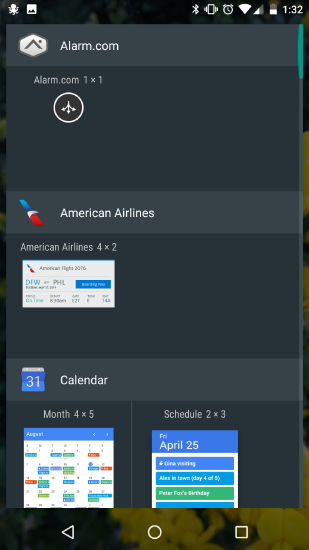
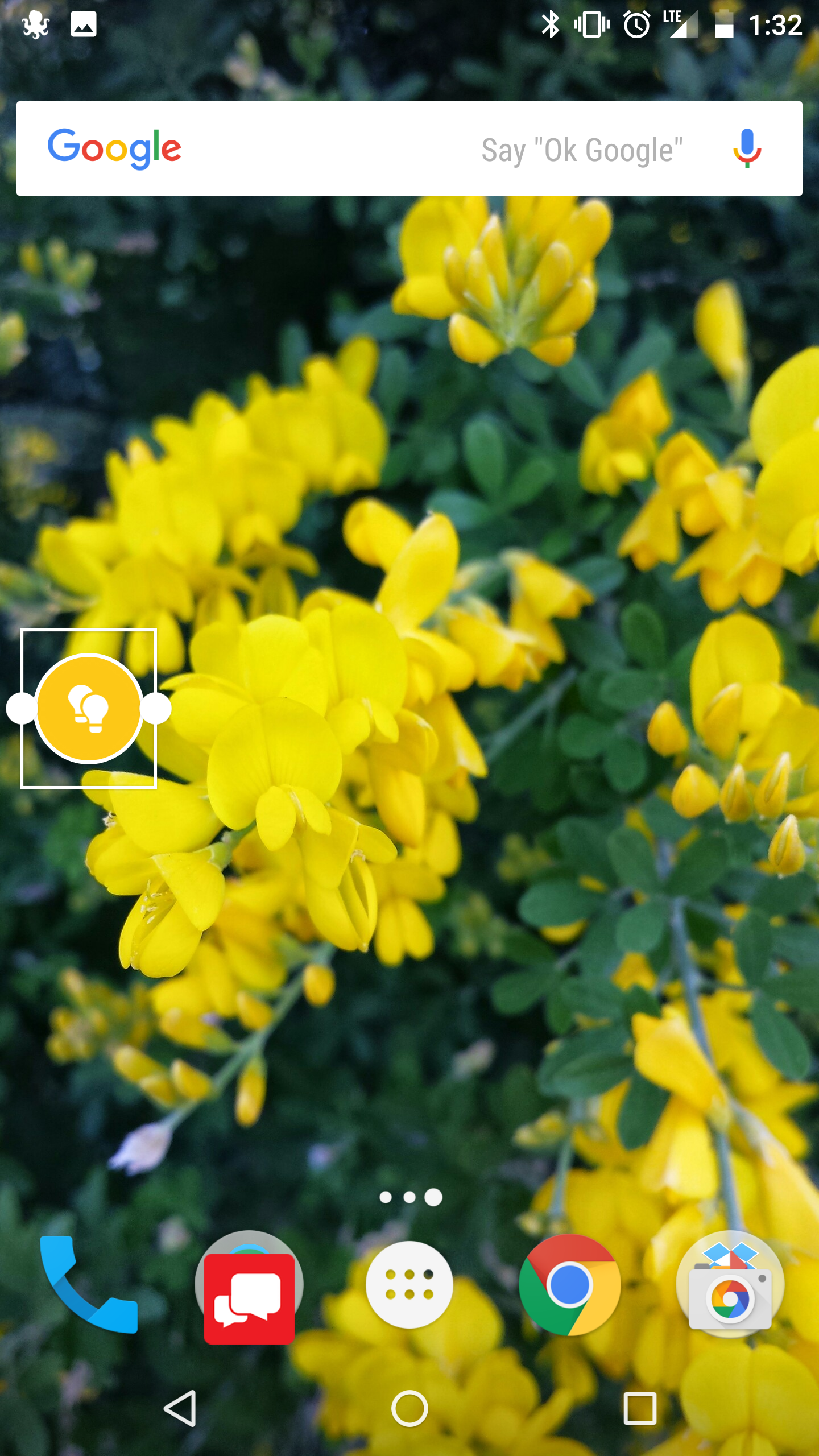
- Once the Alarm.com widget is selected, drag and drop the widget to the preferred location.
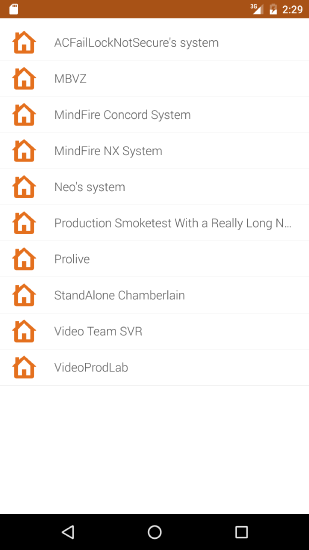
- If Linked Systems is set up on your login, there will be a menu that asks you to select which system's scene this widget will trigger. If your login only has access to one system, proceed to the next step.
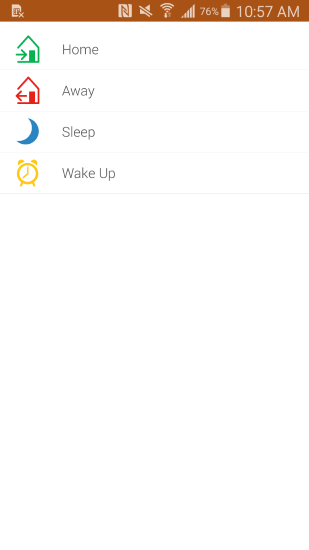
- Tap to select which scene this widget will trigger. These scenes must already exist, so if you would like to add a widget for something you have not programmed yet, you will first have to create the scene. For more information on how to create a scene, see Create/edit a Scene.
- After selecting the scene, it will appear as a widget on the home screen in the place previously selected. The widget can be moved or expanded by pressing and holding the widget until small dots appear to allow for expansion. Drag and drop the dot to expand the widget size.
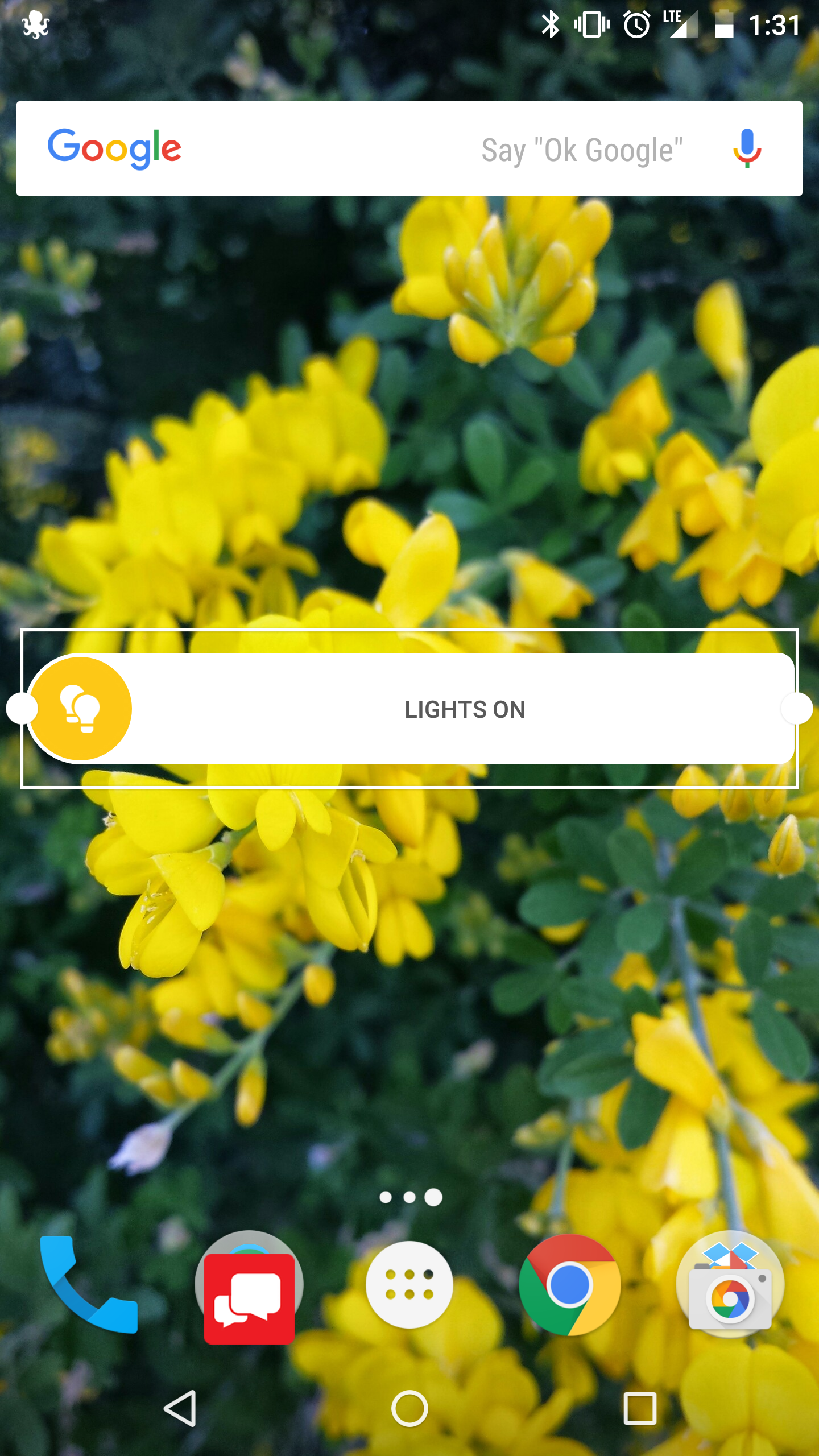
- Tap the widget to trigger a scene.
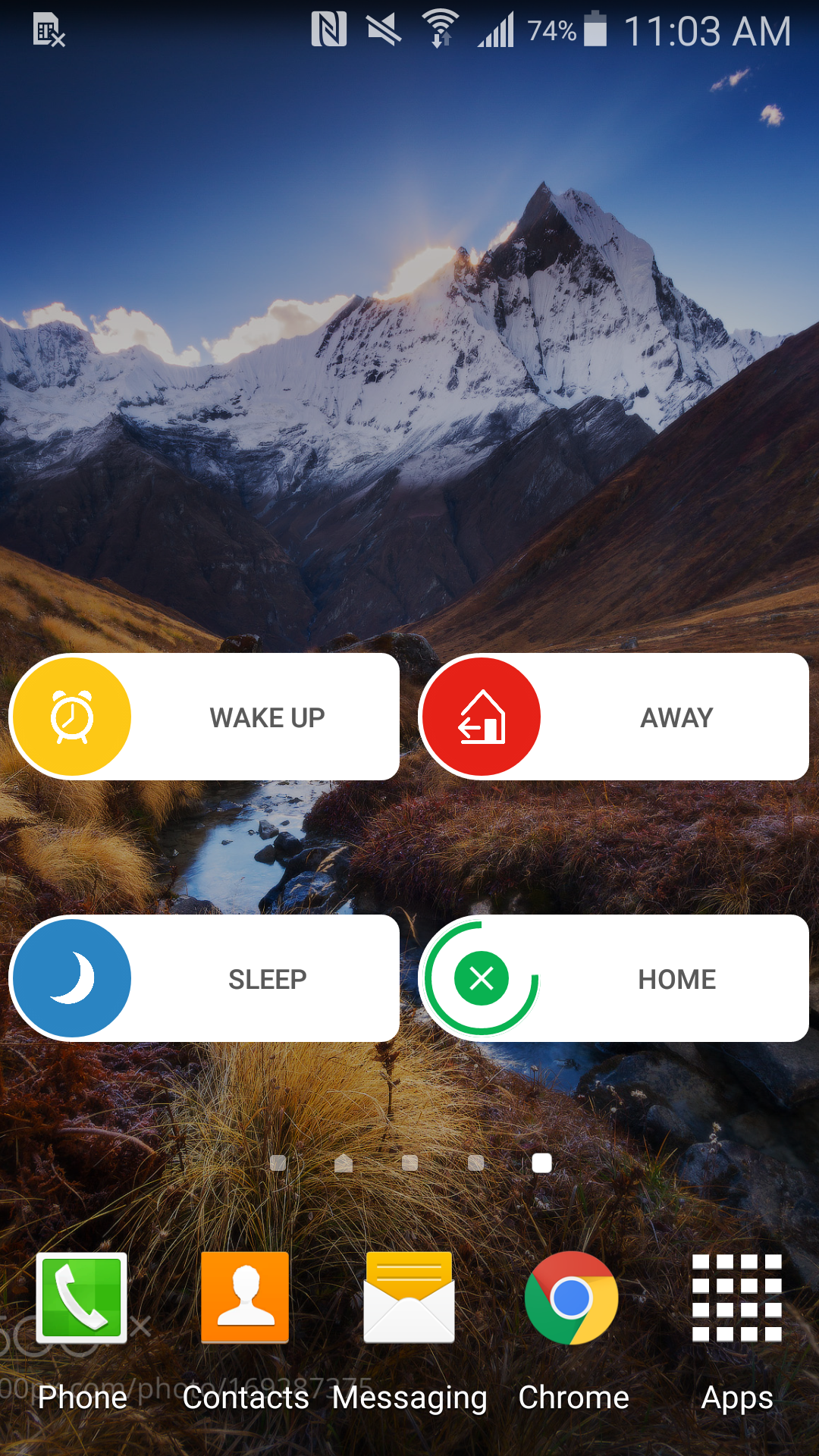
Note: An  will appear in the center of the circle, and a timer bar will appear and disappear after three seconds. If the is tapped within the 3 second time window, the scene triggering will be canceled.
Scenes are edited from the Scenes sections of the Customer app and Customer website, so any adjustments desired to be made to widgets will need either a scene adjustment or a new scene with a corresponding new widget.